Your company profile is what customers and your AI assistant both read before a request begins. It fills your public request page, feeds the assistant’s answers, and supplies the business name printed on proposals, contracts and invoices.
What you can set #
Press Edit profile to unlock the fields.
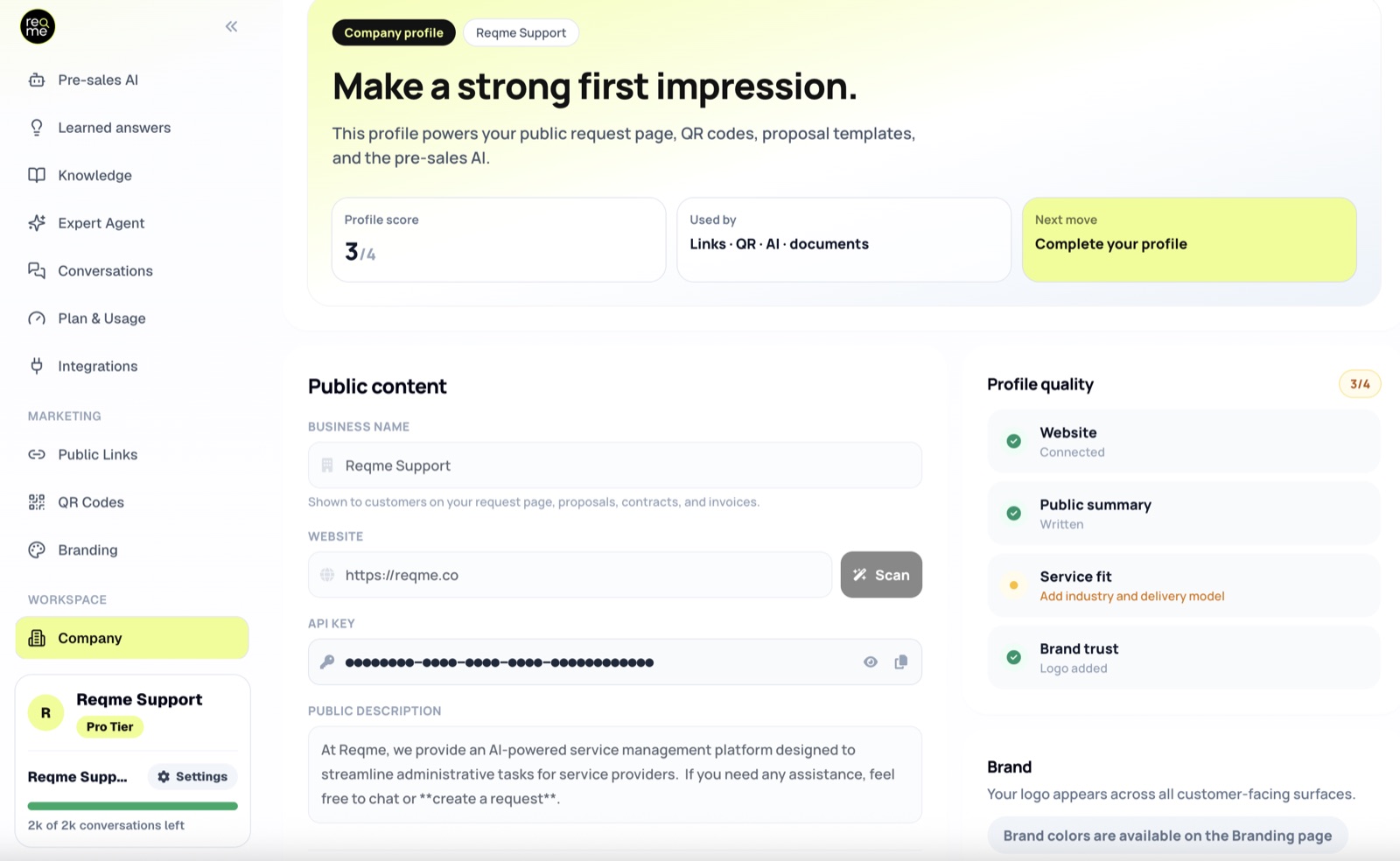
- Business name — required. Three to fifty characters, letters only, no digits. This is your trading name, shown to customers.
- Website — your business site. Also the source for the Scan button below.
- Public description — a few sentences on what you do. Up to 5,000 characters.
- Industry — helps the assistant judge what a question is about.
- Public page language — the language customers see. Leave it on Auto to follow your country.
- Delivery model — required. Online, on-site, or both.
- Coverage — country, region and city, filled in one after another. Hidden if you work online only.
Where your public description appears #
It is worth writing properly, because it does three jobs at once:
- It is the first thing a visitor reads at the top of your public request page.
- Your AI assistant treats it as fact about your business when answering questions.
- It informs the wording ReqMe generates for proposals and contracts.
Write it for a customer who has never heard of you: what you do, who for, and what makes working with you different. Avoid claims you cannot stand behind — the assistant will repeat them.
Scanning your website #
Scan next to the website field reads your site and proposes a description and a list of services, so you do not have to type your catalogue from scratch.
It runs in the background and can take a few minutes. Nothing is saved while it works — you get a preview of what it found, and nothing changes until you press Apply.
Apply replaces your entire service catalogue #
This is the one thing to understand before you press it. Applying a scan deletes every service you currently have and puts the scanned ones in their place. Prices, descriptions and any wording you refined by hand go with them.
Scan is designed for setting up a new account. If you have already built your catalogue, do not re-scan to pick up one new service — add it by hand on the Services page instead.
Other things worth knowing #
- Scanning does not use up any of your conversations.
- Re-scanning the same site within a day returns the previous result rather than reading it again.
- One scan at a time per account.
- Social media profiles are rejected — give it your own business website.
Your API key #
The key on this page exists for one purpose: pairing the ReqMe WordPress plugin with your account. You paste it into the plugin’s settings once, and your WordPress server uses it to talk to ReqMe.
Treat it as a password. Anyone who has it can act for your account. Specifically:
- Never put it in a web page, a theme template, or any JavaScript running in a browser. Anyone viewing the page source can read it.
- Never commit it to a public repository or paste it into a support forum or a screenshot.
- Only ever enter it in the plugin’s own settings screen, which keeps it server-side.
The key cannot be regenerated from the app. If you believe yours has been exposed, contact us at hi@reqme.co rather than trying to work around it.
You do not need the key for anything else. Embedding the chat widget does not require it.
Profile quality #
The checklist on the right scores four things, and updates as you type:
- Website — a valid address is filled in.
- Public summary — your public description is not empty.
- Service fit — you have set an industry and a delivery model.
- Brand trust — a logo is uploaded. That is done on the Branding page, not here.
The score is guidance for you. It does not affect your plan, your ranking or what customers can do.
Frequently asked questions #
Is the business name here the same as my legal name on invoices? #
No — they are separate. This is your customer-facing trading name. Your registered legal name, address, VAT and registration numbers are kept apart and used on documents that need them. Where both exist, an invoice prefers the legal name.
If I rename my business, does my public link change? #
No. Your web address is fixed when the account is created. Renaming changes what customers read, not where they go, so printed links and QR codes keep working.
Where do I change my logo and colours? #
On the Branding page, under Marketing.
Does changing my public description update my assistant? #
Yes — saving the profile refreshes what the assistant knows. For everything else it draws on, see Where your assistant gets answers.
Need help? #
If this page did not answer your question, send it to us. Tell us what you were trying to do and what happened instead — that is usually enough for us to spot the problem straight away.
Prefer email? hi@reqme.co


