Every ReqMe account has one public request page. This guide covers the three ways to get people to it: the page’s own address, trackable campaign links, and a QR code for print.
Your public request page #
This is the page customers use to send you a request:
https://app.reqme.co/your-company-name/requests
The last part is your workspace address, created from your company name when you set the account up. You can copy the full link from the top of the Requests page.
It never changes. Renaming your business does not rewrite your address, so anything you have already printed or published keeps working.
Public links: one link per channel #
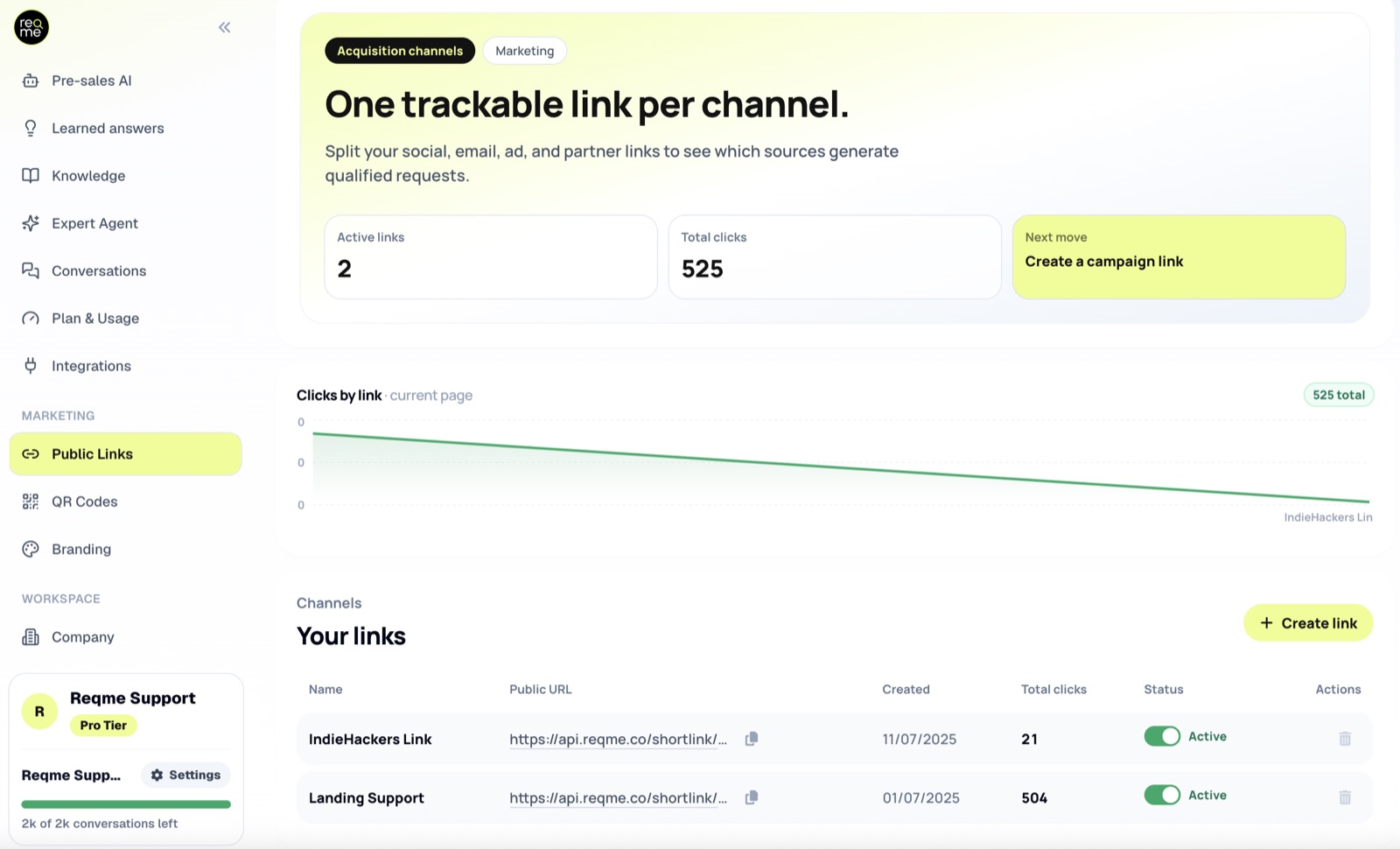
Sharing the same address everywhere tells you nothing about where people came from. Public links solve that: each one is a short web address of its own that lands on your request page and counts its own clicks.
Make one per channel — one for Instagram, one for your email signature, one for a partner’s website — and after a few weeks the click counts tell you which channel is actually worth your time.
Creating a link #
Go to Marketing → Public Links and press Create link. The link is created immediately — there is no form to fill in.
A new link appears as Untitled link. Click the name to rename it. Give it a name you will still understand in six months: Instagram bio beats link 3. The web address itself is generated for you and cannot be edited.
What the click count means #
It counts clicks, not people. One person opening a link five times counts five. Your own clicks count too, including when you test a link from this page. Read the numbers as a comparison between channels, not as a visitor count.
ReqMe stores nothing about the person clicking — no IP address, no device, no location, no timestamp. A click only advances a counter. That keeps the feature simple to explain if a customer ever asks what you track.
If someone who arrived through a link starts a chat with your assistant, that conversation is tagged with the channel it came from. You can filter by channel on the Conversations page to see which links produce real conversations rather than just clicks.
Deleting a link is permanent #
Deleting removes the address straight away and without a confirmation step. Anyone who follows it afterwards gets a “not found” page, and the address cannot be recovered or recreated.
Never delete a link you have printed, posted publicly, or given to a partner. If a campaign is over, leave the link alone — an unused link costs nothing.
QR code #
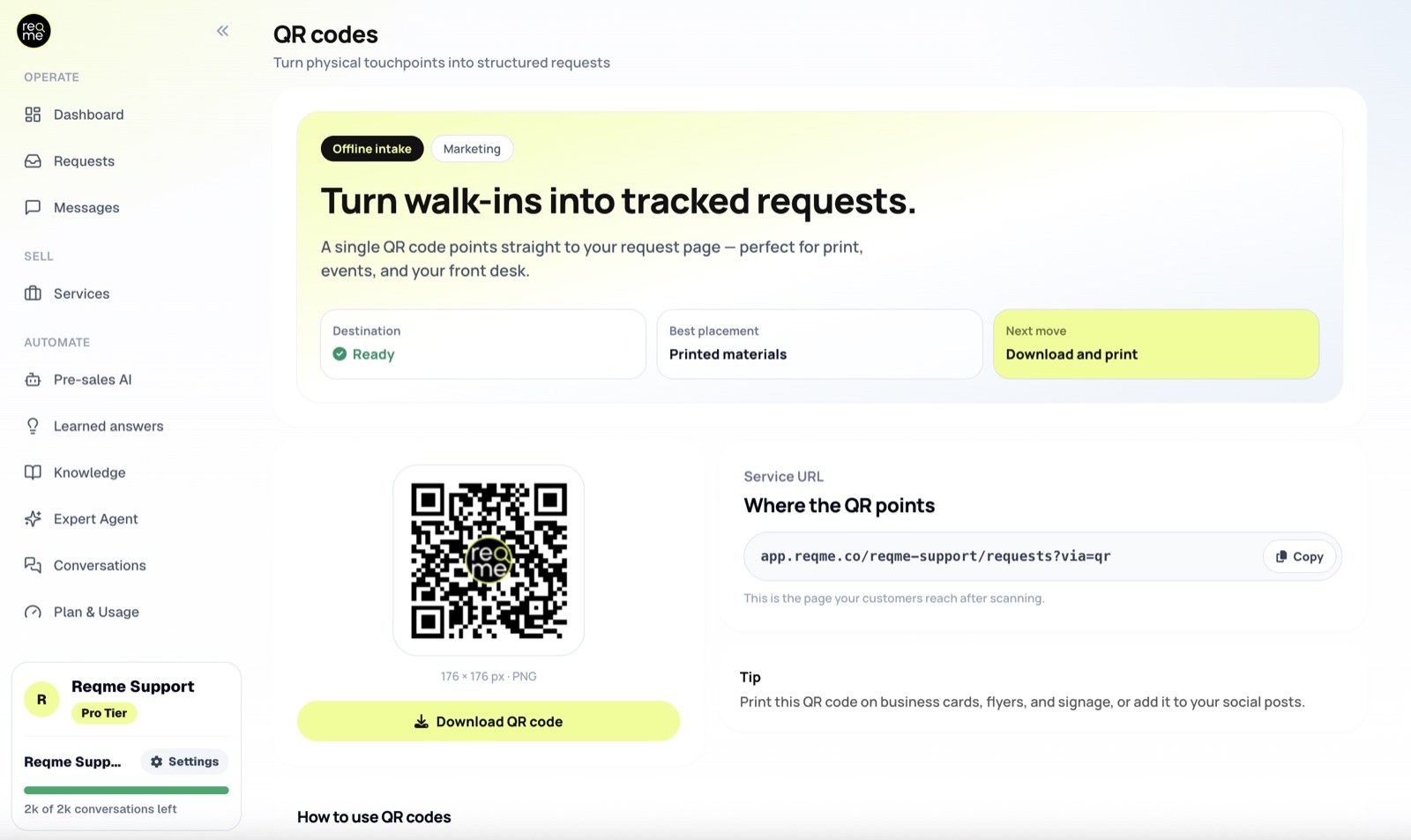
Go to Marketing → QR Codes. Your account has one QR code, generated automatically, that opens your public request page when scanned. There is nothing to configure.
What you get when you download #
A 176 × 176 pixel PNG. That is what the page shows, and that is what the file contains.
Plan around that size. It is fine on screen, in a social post, or in a slide. For print it is small — at normal print resolution it is roughly 1.5 cm square, so enlarging it for a poster or a flyer will make it blurry and harder to scan. If you need a large printed code, give your printer the destination address shown on the page and have them generate the code at the size they need. The address is a plain web link; any QR generator will produce a working code from it.
Test any printed code with a phone before you order a run of them.
The logo in the middle #
The mark in the centre of the code is the ReqMe logo. It is added automatically and cannot be changed or removed, so the code is not entirely unbranded. If that matters for your materials, generate your own code from the destination address instead.
What is measured #
Scans are not counted. There is no scan number anywhere in ReqMe today, and the page says as much.
What you can see is the next step: if someone scans the code and then talks to your assistant, that conversation is marked as coming from the QR code, and you can filter for it on the Conversations page. Someone who scans, looks and leaves is invisible.
Which one to use #
- Your request page address — for your website, where a permanent, readable link belongs.
- A public link — anywhere you want to know whether that channel works. Survives a business rename; dies if you delete it.
- The QR code — anything physical: counter signage, a card, an event stand. Nothing can break it, but nothing counts it either.
To change how that page looks when people arrive, see Branding your request page. To put the assistant on your own website instead, see the widget installation guide.
Frequently asked questions #
Can I have more than one QR code? #
No — one per account. If you need to tell channels apart, use public links, which are unlimited and counted.
Will my QR code stop working if I rename my business? #
No. Your workspace address is fixed when the account is created and does not follow later name changes.
Do public links work with the chat widget on my own site? #
They are separate things. A public link sends someone to your ReqMe request page. The widget puts the assistant on your own pages — visitors there are recorded as coming from the widget.
Someone clicked but no request arrived. Why? #
A click only means the page opened. People browse and leave. If clicks are high and requests are low, look at what the page says when they land: your public description, your service list, and your heading all shape whether someone starts. See What customers see in the chat.
Need help? #
If this page did not answer your question, send it to us. Tell us what you were trying to do and what happened instead — that is usually enough for us to spot the problem straight away.
Prefer email? hi@reqme.co


