Once you’ve completed the onboarding process, you’ll be taken to the Reqme dashboard – your central hub for managing client requests, communications, and service operations. This guide will help you understand the key elements of the dashboard and how to navigate them effectively.
Dashboard Overview #
The Reqme dashboard is designed to give you a quick snapshot of your service management activities and provide easy access to all features. When you first log in, you’ll see several key sections:
The main Reqme dashboard provides a comprehensive view of your service activities
Main Dashboard Sections #
- Navigation Menu – Located on the left side of the screen, providing access to all main features
- Needs attention – The work ReqMe thinks should come first
- Revenue movement – Paid against pending, over time
- Recent requests – The latest deals, with their status
Navigating the Dashboard #
Left Sidebar Navigation #
The sidebar menu is your primary navigation tool in Reqme, containing links to all major features:
The sidebar groups everything by what you are doing rather than by feature name:
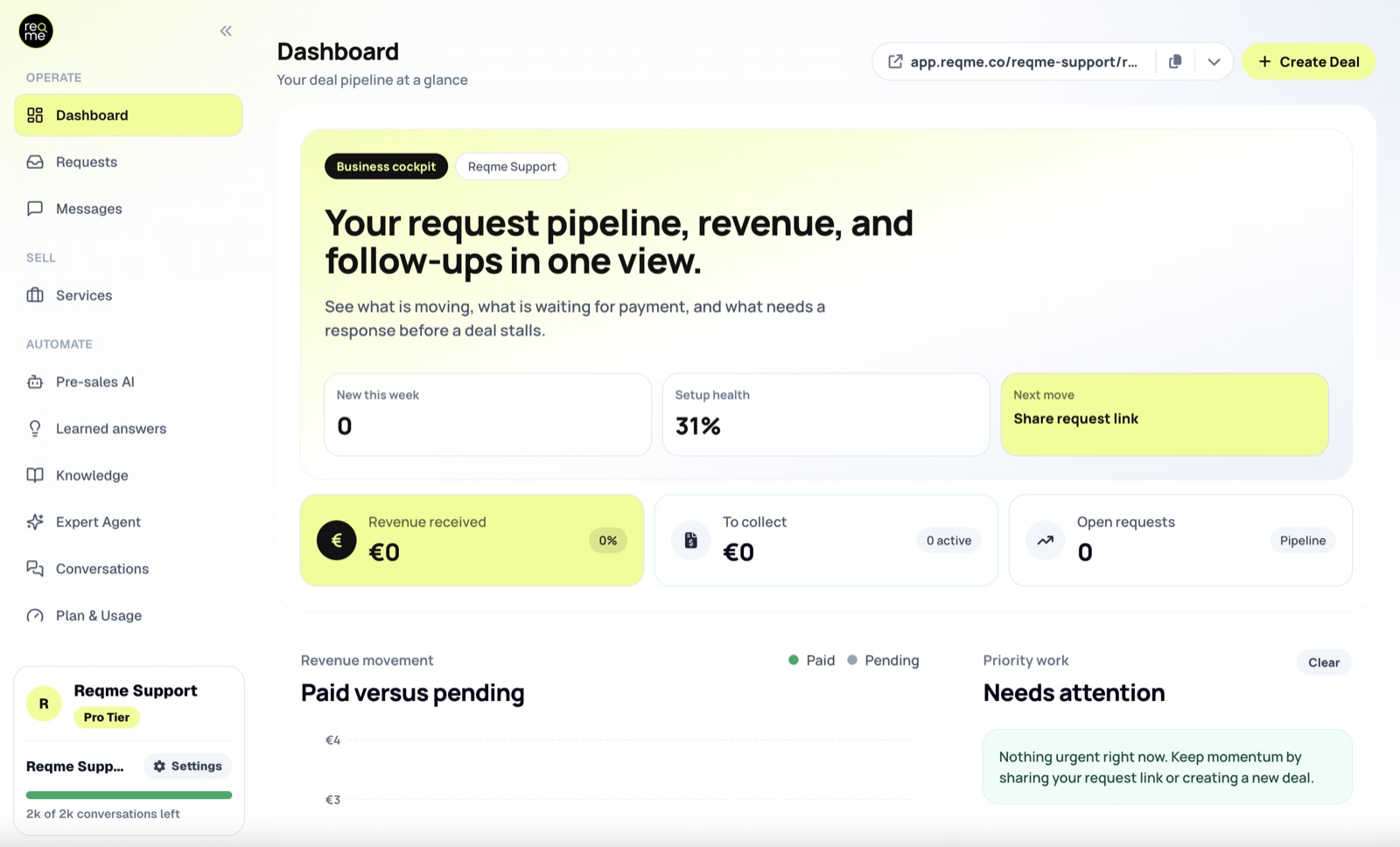
- Operate — Dashboard, Requests, Messages. Your day-to-day work.
- Sell — Services.
- Automate — Pre-sales AI, Learned answers, Knowledge, Expert Agent, Conversations, Plan & Usage and Integrations. Everything to do with your AI assistant.
- Marketing — Public Links, QR Codes and Branding.
- Workspace — Company.
If you are looking for something and cannot place it, the grouping is the fastest way in: ask what you are trying to do, not what the feature is called.
Around the sidebar #
Two things sit outside the navigation list itself:
- Unread badges – A count on Messages when customers are waiting on you. There is no notifications bell; alerts reach you by email, and by browser notification if you switch it on in Settings
- Account card – At the bottom of the sidebar: your workspace, your plan, your live usage meter and a link to Settings
- Create Deal – On the Requests page: enter a request yourself for a customer who called, emailed or walked in
Key Dashboard Features #
Request Management #
The Requests section is where you’ll spend most of your time. Here you can:
- View all incoming client requests
- Receive notifications
- Track request progress through your workflow
The request management interface shows all client requests and their current status
Communication Center #
The Messages section centralizes all client communications:
- View message threads organized by request
- Send and receive messages from clients
- See which conversations are waiting on your reply
Using Quick Actions #
The action you will reach for most sits on the Requests page rather than the dashboard:
- Create Deal – Manually enter a request on a customer’s behalf
Next Steps #
Now that you’re familiar with the dashboard layout, you might want to explore:
Need help? #
If this page did not answer your question, send it to us. Tell us what you were trying to do and what happened instead — that is usually enough for us to spot the problem straight away.
Prefer email? hi@reqme.co


