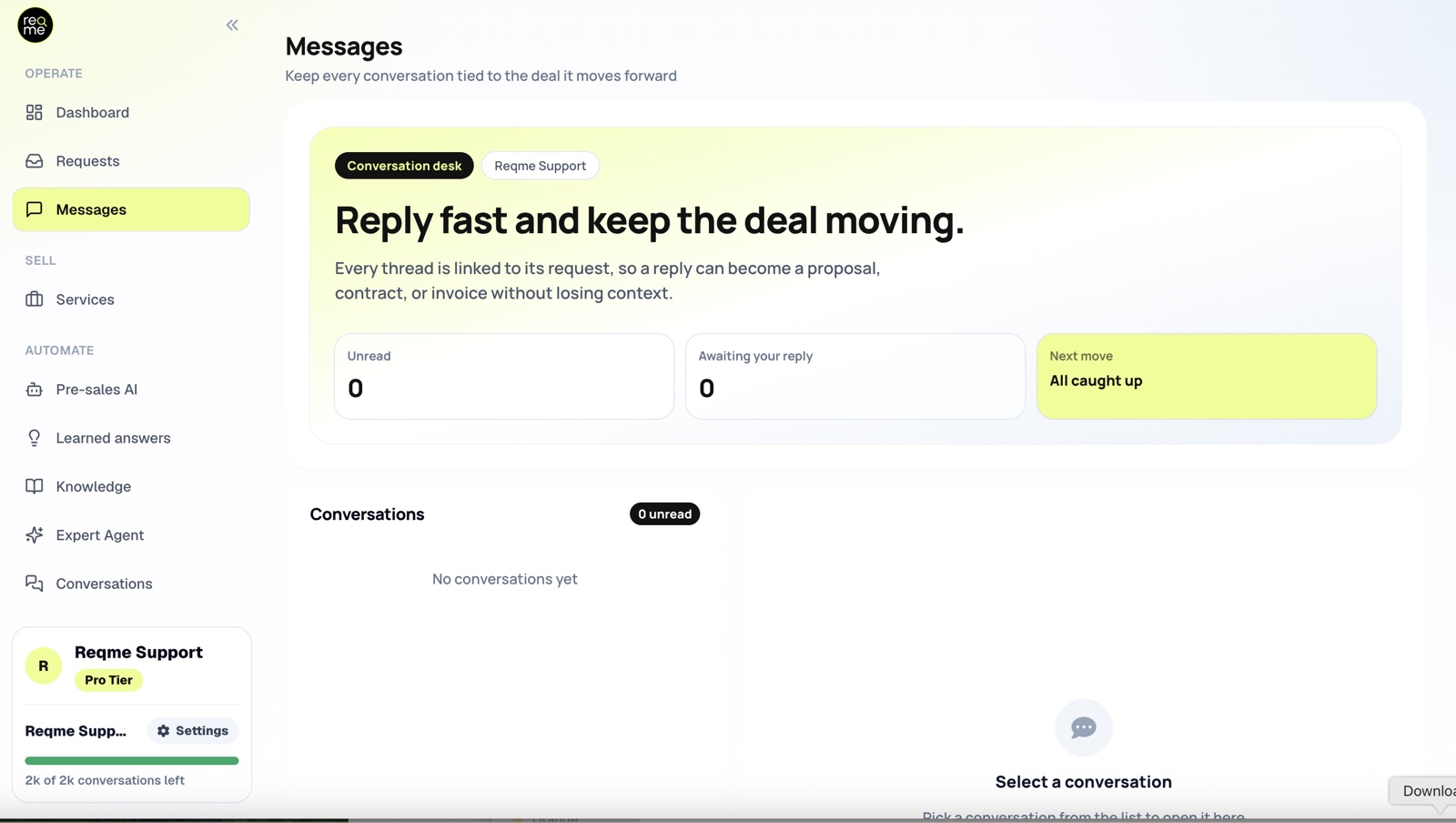
Messages is where you talk to customers about a specific deal. Every conversation belongs to one request, so a reply can turn into a proposal, a contract or an invoice without anyone losing the thread.
How conversations work #
There is no separate inbox. Each conversation is a request, and the list is ordered by whichever had activity most recently, so anything live floats to the top.
Pick a conversation to read it and reply. Messages appear on both sides immediately — neither you nor the customer needs to refresh.
Do not confuse this with Conversations in the sidebar. That is the AI pre-sales chat with visitors who have not become a request yet. Messages is you, personally, talking to a customer who already has one.
How the customer replies #
Your customer has no ReqMe account and no password. They get a private link by email that opens their request page, where they can read the thread and write back.
That link is personal to their request. Tell customers not to forward it — anyone holding it can read the conversation and the documents attached to that deal.
If you need to stop a customer writing on a particular deal, open the request and turn off chat for it. Their composer disappears; the history stays.
Unread and “Awaiting your reply” #
Both counters only ever count the customer’s messages. Your own replies never make anything unread.
- Unread — how many customer messages you have not read.
- Awaiting your reply — how many conversations those messages are spread across.
Three messages in one conversation reads as Unread 3, Awaiting your reply 1. The badge on the sidebar is the total unread count.
Opening a conversation marks everything in it as read, and there is no way to mark it unread again. If you open something you cannot deal with straight away, note it somewhere — the counter will not remind you a second time.
Email notifications #
Both sides are emailed when the other writes, with a short preview of the message. You do not need to sit in the app.
Consecutive messages from the same person within about ten minutes only produce one email, so someone typing three quick lines does not send three notifications. In-app alerts still appear for each one.
These emails are not optional and cannot be turned off — they are how a customer without an account finds out you replied. What you can switch off is browser push notifications, under Settings. See Notifications.
What Messages cannot do #
Worth knowing before you rely on it:
- No attachments in a message. Files belong to the request itself, in its attachments area, where both sides can see them. Send the message, add the file to the request.
- No editing or deleting once sent. There is no unsend. Correct a mistake with a follow-up message.
- No internal notes. Everything you write here is visible to the customer.
Frequently asked questions #
Does replying change the request’s status? #
No. Status follows documents — a proposal, a contract, an invoice — or a change you make by hand. See Managing client requests.
Can my customer message me before they send a request? #
Not here. Before a request exists they are talking to your AI assistant, and those chats live under Conversations. Once the assistant creates a request, the thread moves into Messages.
The customer says they never got my reply. #
Check the address on the request first — the notification goes to the email attached to it. After that, ask them to check spam. If you sent several messages in quick succession, only the first produced an email.
Can two people from my team answer? #
Messages you send appear as coming from your business, not from a named person. See Team access and roles for how access works today.
Need help? #
If this page did not answer your question, send it to us. Tell us what you were trying to do and what happened instead — that is usually enough for us to spot the problem straight away.
Prefer email? hi@reqme.co


