Branding sets your logo and two colours once, and applies them to the surfaces your customers actually see. It takes about five minutes and it is the difference between a request page that looks like yours and one that looks like a form.
Where your branding appears #
Logo and colours do not reach the same places. This trips people up, so it is worth being exact.
Your colours #
- Your public request page.
- The page your customer uses to follow their deal, read documents and message you.
- The ReqMe chat widget on your own website.
Your logo #
- Everywhere the colours go, and in addition —
- the proposal, contract and invoice PDFs you send.
Neither reaches #
- Emails. Every notification uses ReqMe’s own layout.
- Your QR code. It is fixed black and white with the ReqMe mark in the middle.
So: a customer opening your request page sees your colours and logo, a customer opening your invoice sees your logo, and a customer receiving a notification sees a ReqMe email.
Uploading a logo #
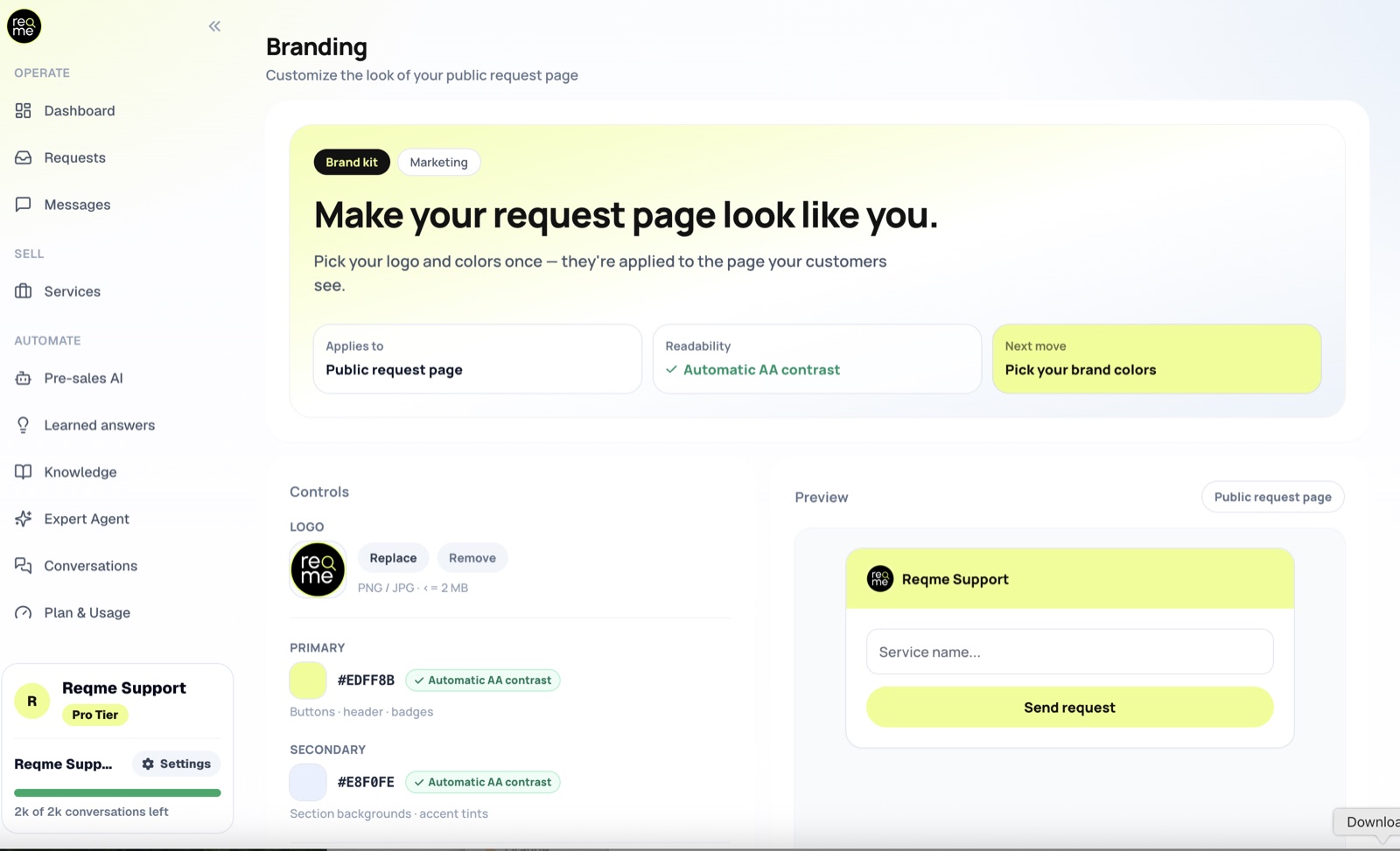
Press Replace and choose a file.
- PNG or JPG.
- 2 MB or less.
- Any shape — it is fitted rather than cropped, so nothing gets cut off.
A PNG with a transparent background looks best, because it sits on your brand colour without a white box around it. Your logo also appears small — in a page header and at the top of a PDF — so a version that stays legible at thumbnail size beats a detailed one.
You have one logo for the whole account. Upload it here and every surface picks it up. Without one, your request page falls back to a generic placeholder and documents simply have no logo.
Choosing colours #
- Primary — buttons, the page header, badges. The colour people notice.
- Secondary — section backgrounds and light tints. Keep it pale.
Take both from your existing brand rather than picking something new here. If you only know your primary colour, leave the secondary alone.
What “Automatic AA contrast” means #
ReqMe chooses black or white text on top of your colour, whichever is easier to read. It never alters the colour you chose.
Some colours cannot be rescued by either — mid-greys and mid-tone brand colours are the usual culprits. In that case the badge changes to Low contrast. That is a warning, not a block: the colour still saves. It means some customers, particularly on phones outdoors or with reduced vision, will struggle to read your buttons. If you see it, try a darker or lighter shade of the same colour.
Heading and subtitle #
You can also set the words at the top of your request page — a heading and a subtitle. Leave them blank and neither is shown.
Use them to tell a visitor what to do: “Tell us about your project” works better than your company name, which they already know from your logo.
Starting over #
If a colour experiment goes wrong, Reset to ReqMe default restores the original palette. Your logo is kept — only the colours revert.
Frequently asked questions #
Why don’t my colours show on my invoices? #
Documents are deliberately plain, so they read as business paperwork. Your logo is on them; your brand colours are not. The invoice builder has its own colour options for the totals and table header if you want accents there.
Can I use my own logo in the QR code? #
No. The QR code always carries the ReqMe mark. If you need a fully own-branded code, generate one yourself from the address shown on the QR Codes page.
Can I brand the notification emails? #
Not today. All emails use ReqMe’s layout.
Can I use a different logo on one particular document? #
Yes. An invoice can hide the logo or use a one-off image, and a proposal can carry its own. Neither changes your account logo.
I changed a colour and my customer still sees the old one. #
Check you pressed Save — the preview updates before saving. Then ask them to reload the page.
Need help? #
If this page did not answer your question, send it to us. Tell us what you were trying to do and what happened instead — that is usually enough for us to spot the problem straight away.
Prefer email? hi@reqme.co


