Every deal in ReqMe starts as a request. The Requests page is where new demand lands, where you see what is waiting on you, and where you open a deal to send a proposal, a contract or an invoice.
What the Requests page shows #
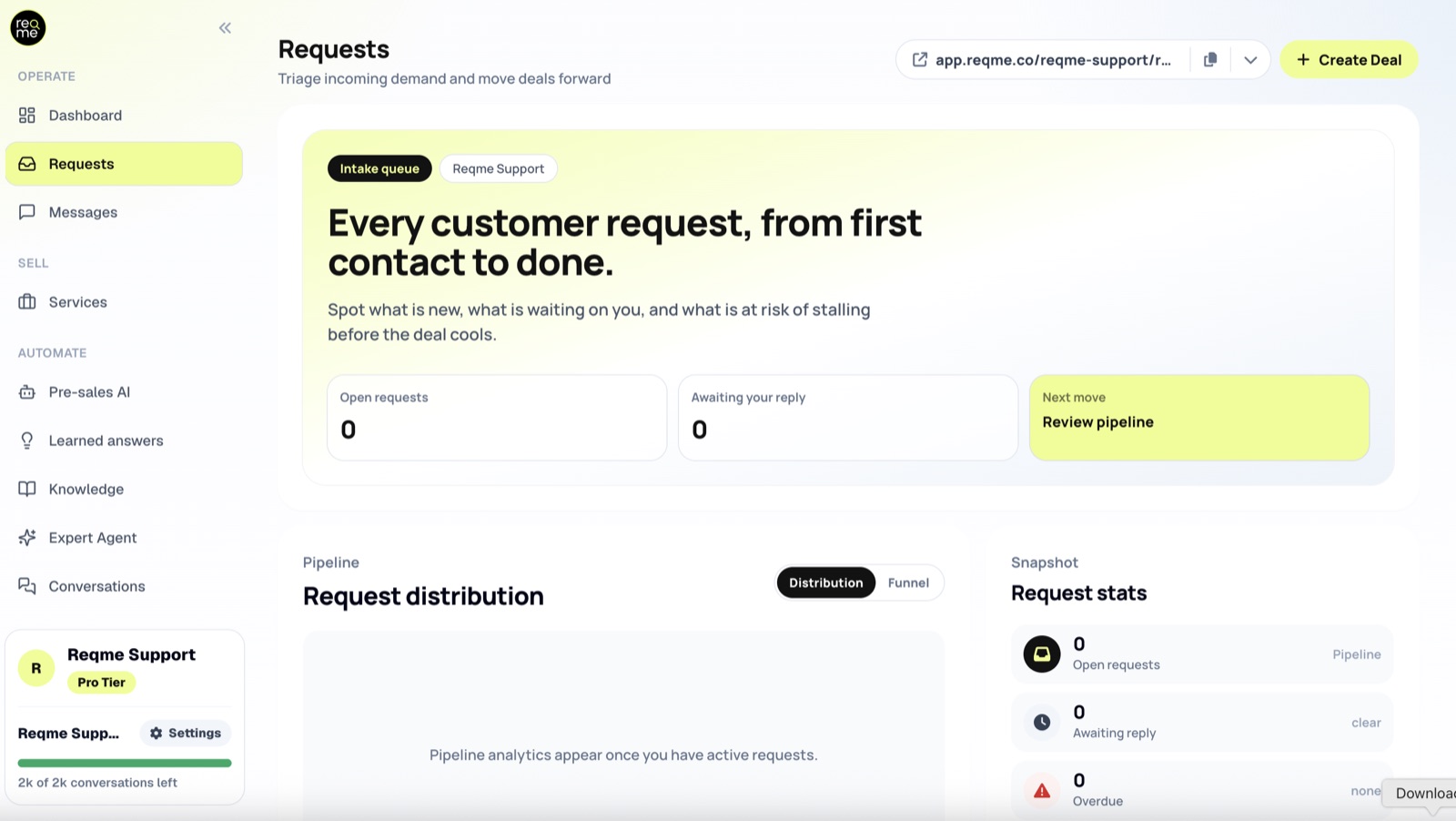
The list below the charts has one row per request, with the request number, the customer, the service they asked about, the subject, the current status and the date it arrived. Requests are ordered newest first and shown ten to a page.
Clicking a row opens a summary beside the list. From there, Open request takes you into the full deal, and Open chat takes you to the conversation with that customer.
Awaiting your reply counts the requests that have at least one unread message from the customer — not the number of messages. It is the most reliable “do something today” number on the page.
Request statuses #
A request carries one status at a time, and it moves on its own as documents are sent, signed and paid. You can also set any status by hand from the request itself, which is useful when something happened outside ReqMe — a customer who accepted over the phone, for example.
Before a proposal #
- Pending — the request has arrived and nobody has picked it up yet. Every new request starts here.
- Active — you are working on it.
Proposal #
- Proposal sent — the customer has it and has not answered yet.
- Proposal approved — accepted. You can move to a contract.
- On hold — the customer parked it rather than saying no.
- Proposal rejected — declined.
Contract #
- Contract ready — the contract exists and is waiting for signatures.
- Partially signed — one side has signed, the other has not.
- Contract signed — both sides have signed. You can invoice.
- Contract rejected — the customer declined to sign.
Invoice and delivery #
- Invoiced — the invoice has gone out.
- Paid — payment received.
- Delivery submitted — you have handed over the work and the customer is reviewing it.
- Completed — the deal is closed.
Cancelled #
- Cancelled — the deal stopped, from either side, at any point.
For what each status means for the customer and which emails go out, see Status reference and Understanding the deal flow.
Creating a deal yourself #
Not every customer arrives through your request page. When someone calls, emails or walks in, use Create Deal at the top right to enter the request yourself.
You will be asked for:
- Email — required, and it must be a real address. Everything the customer receives goes there.
- Full name — required.
- Phone — optional.
- What the customer needs — optional free text.
- Services — at least one. Pick from your services catalogue, or type a one-off service that is not in it.
ReqMe opens the new deal as soon as it is created, so you can go straight to a proposal.
One thing to know: if you have used up the requests included in your plan, a deal you create yourself is refused rather than queued. Requests that customers submit behave differently — see Plan and billing.
Reading the pipeline charts #
The chart in the middle of the page has two views.
Distribution groups your requests into six buckets — New, Active, Proposal, Contract, Invoiced and Completed — so you can see where work is piling up. If most of your requests sit under Proposal, the bottleneck is people not answering proposals, not people not finding you.
Funnel shows how far deals get: how many reached a proposal, a contract, an invoice, payment and completion. Each bar counts every deal that reached at least that stage, so the bars always shrink from left to right. The steepest drop is the step worth fixing first.
Both views are drawn from your most recent requests rather than your entire history, so treat them as the current shape of your pipeline, not as lifetime accounting.
Finding a particular request #
The list is ordered newest first and paged ten at a time; there is no search box or status filter on it today. In practice you will rarely need one:
- Anything needing a reply is reachable from Messages, which sorts by the most recent activity.
- The Dashboard surfaces what needs attention — unanswered messages, overdue invoices, proposals about to expire.
- Every notification email links straight to the deal it refers to.
Frequently asked questions #
Can I change a request’s status by hand? #
Yes. Open the request and pick any status. Use it when the deal moved outside ReqMe — but remember the customer sees the status too, so setting Paid before money arrives will confuse them.
What is the link at the top of the page? #
Your public request page — the page customers use to send you a request. Copy it into your website, your email signature or your social profiles. See Public links and QR codes.
Why does a request say Pending when I have already replied? #
Replying to a message does not move the status. Status follows documents — a proposal, a contract, an invoice — or a change you make yourself. Set it to Active to show you have picked the deal up.
Can I delete a request? #
Deals are closed rather than deleted: set the request to Cancelled. That keeps the history, which matters if the customer comes back or if you need the record later.
Need help? #
If this page did not answer your question, send it to us. Tell us what you were trying to do and what happened instead — that is usually enough for us to spot the problem straight away.
Prefer email? hi@reqme.co


